Using Veo Footage with PlayerTrac
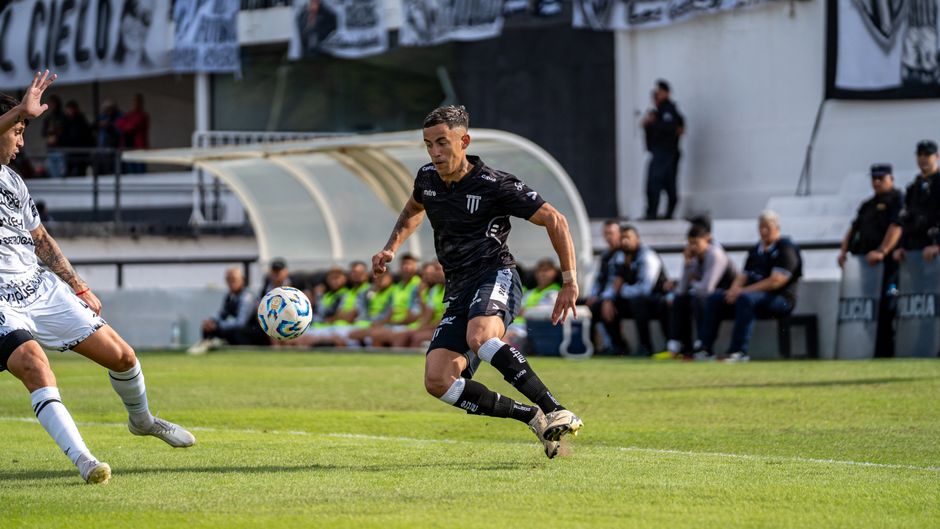
If you already have Veo footage of a soccer game, you can use it to track a specific player. PlayerTrac accepts video from any source — including Veo recordings — and uses AI to follow an individual athlete through the match. You do not need to switch cameras or buy additional hardware.
This means families and coaches who already own a Veo camera, or whose club records games with one, can get individual player-focused video without any extra setup on game day. You record with Veo as you normally would, then bring that footage into PlayerTrac afterward.
The key thing to understand is that PlayerTrac is not a camera system — it is a processing tool. It takes video you already have and applies AI to track a single player through the footage. Veo is one of many sources that work. Phone recordings, GoPro footage, press box cameras, and tripod setups all work the same way.
What Is Veo Footage?
Veo is a standalone camera system designed to record full soccer matches without a camera operator. The camera captures a wide-angle view of the entire field, and Veo's software automatically pans and zooms to follow the ball during playback. Clubs and teams purchase or lease the Veo camera, mount it on a tripod at the sideline, and let it run for the duration of the game.
After the match, Veo processes the footage and makes it available through their web platform. You can watch the auto-tracked broadcast-style view, or switch to the full panoramic view to see the entire field at once. Veo also provides basic team-level analytics and allows you to tag moments manually.
Veo's Built-In Player Tools vs. Source-Agnostic Tracking
Veo is excellent at what it was built for: recording full games automatically with no camera operator. Veo has also introduced Player Spotlight, which lets you follow a selected player within the Veo platform. This is a useful option if all of your games are recorded on a Veo camera and you want to stay inside Veo's ecosystem.
Where a source-agnostic tool like PlayerTrac adds value is when your footage comes from multiple sources — some games on Veo, others on a phone, tournament footage from a livestream download. PlayerTrac processes all of these the same way, letting you build a consistent library of player clips regardless of what camera captured the game. For a deeper comparison of how they differ, see PlayerTrac vs Veo.

How to Use Veo Footage with PlayerTrac: Step by Step
The process is straightforward. There are four steps between a Veo recording and a player-focused video.
Step 1: Download or Export Your Veo Recording
Log in to your Veo account and navigate to the match you want to process. Veo allows you to download the full panoramic recording as a video file. Choose the highest resolution available — higher resolution gives the AI more visual information to work with when identifying and tracking your player. Export the file to your computer.
If your club manages the Veo account, you may need to request download access from your team administrator. Some clubs share Veo recordings via links; in that case, ask for the downloadable file rather than just the streaming link.
Step 2: Upload to PlayerTrac
Go to PlayerTrac and upload the Veo video file. PlayerTrac accepts standard video formats (MP4, MOV, and others), and Veo's export format is compatible. Upload times depend on your internet connection and the file size — a full 90-minute match in HD can be several gigabytes.
Step 3: Identify the Player
Once the video is uploaded, PlayerTrac asks you to identify the player you want to track. You do this by selecting the athlete in a frame of the video — clicking on them or marking them so the AI knows who to follow. This is how PlayerTrac distinguishes your player from everyone else on the field.
Consistent jersey colors and visible numbers help the AI maintain tracking accuracy throughout the match. If your player changes jerseys at halftime (e.g., switching to a different color for the second half), you may need to re-identify them.
Step 4: AI Tracking and Clip Creation
After identification, PlayerTrac's AI processes the video. It follows the specified player through every frame, tracking their movement across the field. Once processing is complete, you can review the tracked footage, select the clips you want, and combine them into a player-focused video.
The result is a video that shows what your athlete did during the match — their touches, runs, defensive actions, and positioning — pulled from the Veo source footage. You can use these clips for recruiting reels, coaching review, or personal archives.
What to Expect from the Output
The video PlayerTrac produces from Veo footage will be focused on the individual player you selected. Here is what you should realistically expect:
- Player-centered clips: Each clip follows your athlete's movement. You see what they did, where they were positioned, and how they moved relative to teammates and opponents.
- Same video quality as the source: PlayerTrac does not enhance the resolution of the original footage. If the Veo recording is 1080p, the output clips will be 1080p. Higher-resolution Veo exports produce clearer player tracking results.
- Clip selection is yours: PlayerTrac tracks the player through the full video and lets you select which segments to include. You choose what goes into the final reel — the AI handles the tracking, not the editorial decisions.
- Off-ball visibility: Because Veo's panoramic view captures the entire field, PlayerTrac can track your player even when they are far from the ball. This is a significant advantage over footage from a single phone camera that follows the ball.
One limitation to be aware of: Veo's auto-tracked broadcast view crops the panoramic footage to follow the ball. If you export only the broadcast view, parts of the field may be cut off. For best results with PlayerTrac, export the full panoramic recording so the AI has the complete field visible at all times.
Tips for Best Results with Veo Video
Veo footage generally works well with PlayerTrac because the camera is stationary and captures a wide field of view. That said, a few practices will improve your tracking results:
Use the Panoramic Export
Always export the full panoramic view, not the auto-tracked broadcast view. The panoramic version keeps the entire field in frame at all times, which gives the AI the most complete data to work with. The broadcast view crops and pans, which can cause the AI to lose the player when they are outside the crop area.
Choose the Highest Resolution
If Veo offers multiple resolution options for download, pick the highest one. Higher resolution means more pixels on each player, which makes identification and tracking more reliable — especially for players far from the camera.
Distinctive Jersey Helps
AI tracking is easier when your player's jersey stands out. This is not always within your control, but if your team wears similar colors to the opponent, tracking can be harder. Games where the teams wear clearly contrasting colors tend to produce the best results. For more on how camera and visual factors affect tracking, see best camera angle for soccer tracking.
Good Lighting Conditions
Veo recordings made in daylight or under strong field lights produce sharper footage with better contrast. Games played at dusk or under dim lighting will have lower video quality, which can affect tracking accuracy. This is true for any camera, not just Veo.

Veo + PlayerTrac Workflow for Teams and Families
Many youth and club soccer teams already use Veo to record every match. Adding PlayerTrac to the workflow gives individual players and their families a way to get personalized video from those team recordings. Here is how that typically works in practice:
For Families
- Your club records the game with Veo as usual.
- After the match, the Veo recording is available on the club's Veo account.
- You download the panoramic recording (or ask the club admin to share the file).
- You upload it to PlayerTrac, identify your child, and let the AI track them.
- You select the best clips and combine them into a highlight reel for college recruiting or personal use.
For Coaches
- Record the match with Veo as part of your normal game-day setup.
- Use Veo's platform for team-level film review and tactical analysis.
- When a player needs individual footage — for a recruiting profile, a development review, or to share with a club coach at the next level — download the Veo recording and process it through PlayerTrac.
- Share the player-focused clips directly with the athlete, their family, or a college coach.
This approach lets teams keep using Veo for what it does best (automated game recording and team film) while giving individual players access to focused footage through PlayerTrac. Neither tool replaces the other — they solve different problems.
For Club Directors
If your club records every game with Veo across multiple age groups and teams, PlayerTrac integration means you can offer individual player tracking as a value-add for families. Parents often ask for individual footage for recruiting purposes, and this workflow gives them a clear path: the club provides the Veo recording, and the family (or the club itself) runs it through PlayerTrac for individual tracking.
Common Questions About Veo Compatibility
Does PlayerTrac require a Veo camera?
No. PlayerTrac works with video from any source. Veo is one option, but phone recordings, GoPro footage, press box cameras, and any other standard video format work just as well. See AI player tracking for more on how source-agnostic tracking works.
Can I use the Veo streaming link instead of downloading?
PlayerTrac requires a video file upload, not a streaming link. You need to download the Veo recording as a file (MP4 or similar) before uploading it. If you only have a streaming link, check with your Veo account admin about getting download access.
Does the Veo panoramic view work better than the broadcast view?
Yes. The panoramic view keeps the entire field visible, so the AI can track your player even when they are far from the ball. The broadcast view crops the image to follow the ball, which means your player may be off-screen during portions of the game. Always use the panoramic export for PlayerTrac.
What if my player is on the far side of the field from the Veo camera?
Players farther from the camera appear smaller in the footage, which can make tracking slightly less precise. This is a limitation of any wide-angle camera setup, not specific to Veo or PlayerTrac. Higher resolution exports help mitigate this. For guidance on optimal camera placement, see best camera angle for soccer tracking.
Can I track multiple players from the same Veo recording?
Yes. You can upload the same Veo recording multiple times and select a different player each time, or process multiple players in separate sessions. Each run produces a separate set of tracked clips for the selected athlete.
Is there a file size limit?
Full-match Veo recordings in HD can be several gigabytes. Check PlayerTrac's current upload limits on the platform. If the file exceeds the limit, you may need to trim the recording to the relevant half or portion of the game before uploading.
Next Steps
If you have Veo footage sitting on your account from past games, you can start using it with PlayerTrac right now. No additional recording equipment is needed — the footage you already have is the input.
For a broader look at how PlayerTrac compares to Veo's built-in features, read PlayerTrac vs Veo. If you are setting up a new recording workflow and want to know where to place your camera for the best tracking results, see best camera angle for AI soccer player tracking. And for a general overview of how AI player tracking works across all sports and footage types, start with the complete guide to AI player tracking.
The footage is already recorded. The AI is ready to process it. The only step left is uploading.